Published on 8/6/2026
How to Add a QR Code to Word, PowerPoint, Canva and Google Docs
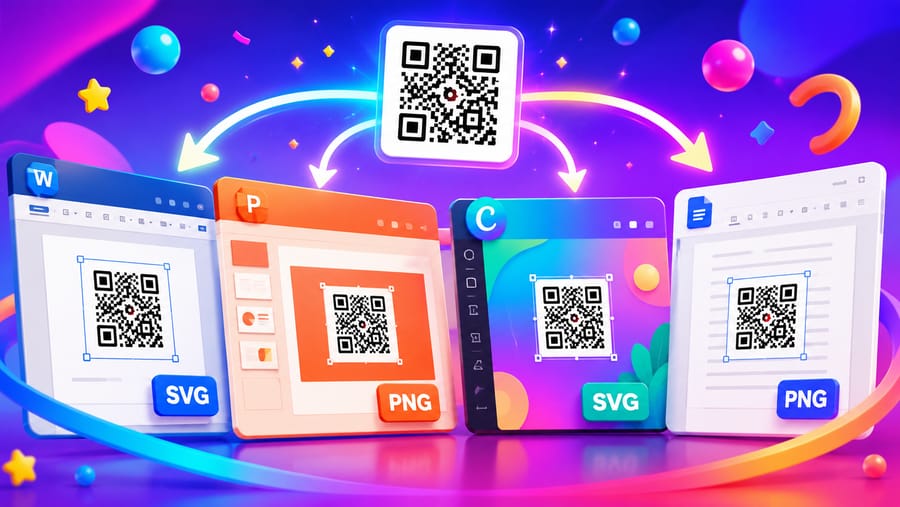
All four apps do the same thing: they place an image. So the instructions are short, and what actually decides whether the code works is the file you hand over and where the document ends up.
Which file for which app
- Word — SVG. Word handles vector images, so the code stays perfectly sharp at any size and in print. Insert → Pictures → This Device.
- PowerPoint — SVG. Same reason, and it matters more: a slide gets projected, so the code is enlarged far beyond its original size.
- Google Docs — PNG. Docs is unreliable with SVG. Export a PNG at a generous size and let Docs scale it down; scaling down is safe, scaling up is not.
- Canva — PNG. Upload it like any other image.
Three things not to do, in any of them: do not screenshot the code (resampling softens the module edges), do not stretch it to a rectangle, and do not sit it on a coloured shape that eats the white border.
Word
Insert → Pictures → This Device, then set the size in the format pane rather than by dragging, so it stays square. Around 2.5 cm is comfortable for a page held in the hand; do not go below 2 cm.
Word on Windows also has a hidden field code that draws a QR code natively — press Ctrl+F9 and use a DisplayBarcode field. It works, and it produces a static code: the destination is baked in, so if the address ever changes, the document is wrong and everything printed from it is wrong too. For anything that will circulate, insert a dynamic code as an image instead.
PowerPoint
Insert → Pictures, then size the code for the room rather than for the slide. A useful rule: about a tenth of the slide height for a small meeting room, more for a hall, and always in a corner where the projector is not washing the screen out.
Two things that decide whether anyone actually scans it:
- Leave it on screen long enough. People need to notice it, take out a phone, unlock it and aim. Ten seconds is a realistic minimum, and a code that appears in a slide transition is decorative only.
- Give a reason next to it. "Scan for the slides" or "Scan for the discount code" is a reason; "scan me" is not.
Canva
Canva has a built-in QR code element, and there is one thing to know before using it: it produces a static code. The destination lives inside the pattern, so it cannot be changed afterwards — if the link ever moves, every design and every print made from it is dead.
If the design will be printed or shared widely, generate a dynamic code elsewhere and upload the PNG to Canva as an image. You get the same result on the page and keep the ability to repoint it.
Google Docs
Insert → Image → Upload from computer. Set the size in the image options rather than by dragging a corner. If the document is going to be exported to PDF and printed, insert a PNG of at least 600 px so the export has pixels to work with.
The rule that outranks all four
If the document will be read on a screen — emailed, opened on a laptop, scrolled on a phone — it should carry a hyperlink, not a QR code. A code on the screen someone is already holding asks them to find a second device, and most people simply do not.
A QR code earns its place in a document that leaves the screen: a printed handout, a poster exported from Canva, a slide on a wall, a PDF that will be printed at reception. If the same document does both, do both: put the code in for the printed copy and make it a clickable link as well, so a reader on a laptop can just click it.
Before you send the file
- Print one page and scan it from where it will be read, with a phone that is not new.
- Check the code is still square after the app's own scaling.
- Check the white border survived — a text box or coloured band pressed against the pattern is the most common way a document breaks a code.
- Put the plain web address in small type underneath. It costs a line and covers everyone whose camera fails.
Quick answers
- Which format for Word and PowerPoint? SVG — both handle vector, so the code stays sharp when printed or projected.
- Which format for Google Docs and Canva? PNG, exported large and scaled down.
- Does Canva's built-in QR code work? Yes, but it is static: the destination cannot be changed later.
- Can Word make a QR code itself? On Windows, with a DisplayBarcode field. It is static too.
- How big on a slide? Roughly a tenth of the slide height for a meeting room, and leave it up for at least ten seconds.
- Should I put a QR code in an emailed PDF? No — that reader is already on a screen. Use a link, and keep the code for the printed copy.