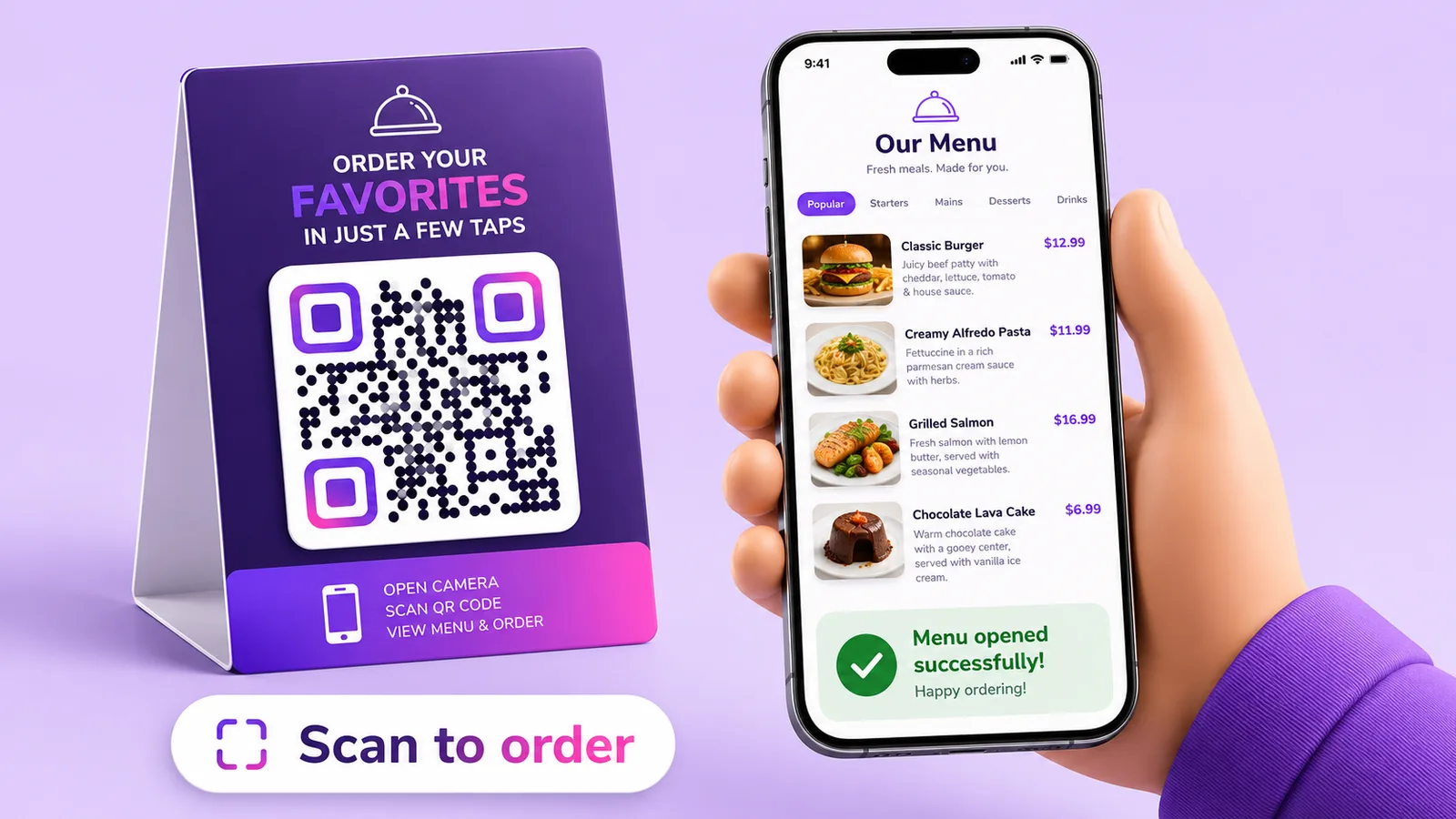
A QR code menu lets your guests scan a small code at the table and open your menu on their own phone — no app, no sticky laminated cards. And if you use a dynamic QR code, you can change dishes and prices whenever you like while the printed code keeps working. Here's how to set one up in a few minutes.
Why put your menu behind a QR code?
- Update it instantly: change a price or swap a seasonal dish without reprinting anything.
- Cheaper and cleaner: no more reprinting laminated menus every time something changes.
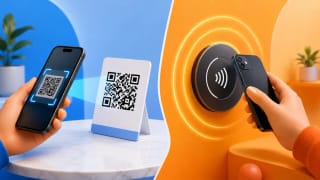
- No app needed: any modern phone camera opens the menu.
- Contactless and hygienic: nothing shared from table to table.
- Measurable: see how many guests actually scan, and when.
Static or dynamic? Choose dynamic
A static QR code points straight at a file or URL and can never change — if your menu moves or a price is wrong, you have to reprint every code. A dynamic QR code points at a short link you control, so you can update the menu, fix a typo, or switch between lunch and dinner versions at any time. The code on the table never changes.
How to create a QR code menu, step by step
- Choose how to present the menu: a built-in menu (sections and items you type in) or a link to your existing menu page or PDF.
- Add your dishes, prices and descriptions — or paste the URL of your menu.
- Design the code: your colors, a logo in the middle, and a frame with a short call to action like "Scan for our menu".
- Download it as PNG, SVG or a print-ready PDF, and print it for tables, windows or the entrance.
- Whenever the menu changes, edit it from the dashboard — the printed code stays the same.
Design and placement tips
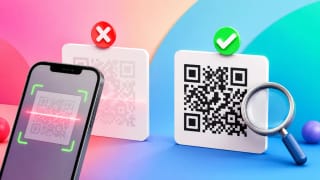
- Keep good contrast between the code and its background, and leave a small quiet margin around it.
- Print it big enough — roughly 2–3 cm (about an inch) on a table tent, larger on a window or poster.
- Add a clear call to action so guests know what to do: "Scan to see our menu".
- Put it where people look: table tents, stickers, the entrance, the receipt.
- Test-scan it from a couple of phones before you print a whole batch.
See how your menu performs
Because each scan is recorded, you can see your busiest hours, which devices guests use, and how many unique visitors opened the menu. It's a simple way to learn when your tables are actually scanning — and to prove the QR menu is being used.
Frequently asked questions
Do guests need to install an app?
No. On any recent phone, the built-in camera recognises the QR code and offers to open the menu.
Can I change the menu after the codes are printed?
Yes, if it's a dynamic QR code. You edit the menu or its link online, and the printed code keeps pointing to the latest version.
Is a QR code menu free?
It can be. Enqre's free plan includes dynamic codes, so you can run a working QR menu without paying — and the codes never expire.
Should I use a built-in menu or link to a PDF?
Either works. A built-in menu is quick to edit and reads well on a phone; a PDF is handy if you already have a designed one.
How big should the printed code be?
Around 2–3 cm on a table tent is comfortable to scan; go larger for windows and posters, and always keep strong contrast.
Ready to set yours up? Create a QR code menu with Enqre — free, and you'll never reprint a menu for a price change again.
The Enqre Team·Published on 7/4/2026·Updated 8/16/2026