How to Make a QR Code for Directions to Your Location
The point of a directions code is not to save someone typing an address. It is to put the pin on the door you want them to walk through, which is frequently not where the registered address puts it.
Drop the pin where the entrance is
Start here, because it is the mistake that actually strands people. A postal address resolves to a building, and maps services place that somewhere near its centroid or its street frontage. Neither is necessarily the way in.
Loading bays, side entrances, venues whose door is round the corner from the address, industrial estates where the unit number means nothing to a satellite — in all of these the correct destination is a point you choose, not an address you look up. Open Google Maps, long-press on the actual door, and build the code from that.
It is worth walking outside and checking what your existing pin does. A surprising number of businesses have never scanned their own directions link from the street.
Two links, and what each one costs you
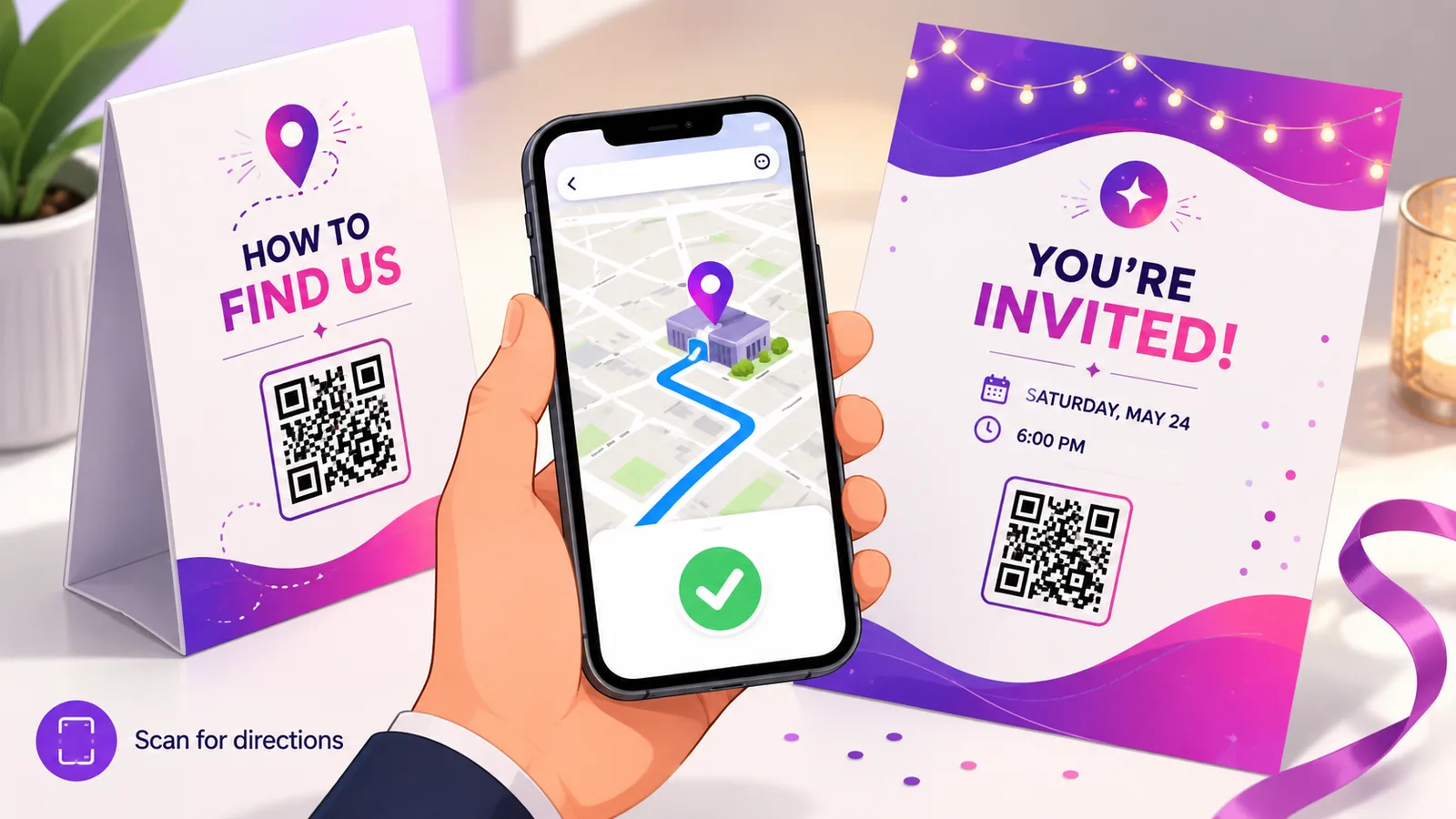
The straightforward option is a shared Maps link: find the place, tap Share, Copy link. It opens your location and the visitor taps "Directions" themselves — one extra tap, and it works essentially everywhere.
To skip that tap, use a directions URL with the route already set:
https://www.google.com/maps/dir/?api=1&destination=52.5163,13.3777
Both are ordinary web links, which is the important property: a phone with no maps app still opens them in the browser. That is why they are the safe default for anything printed for the general public.
The geo: trap
You will find advice recommending a geo: URI — geo:52.5163,13.3777 — on the grounds that it opens the phone's preferred maps app rather than forcing Google. On Android that is broadly true.
On an iPhone it is not. iOS handles geo: poorly to not at all, and the failure is silent: the camera scans, something happens or nothing does, and the guest is standing in a car park with no route. If you print it on a wedding invitation you will find out from the people who did not arrive.
Use a normal https maps link unless you control the audience's devices. It costs one tap and removes the whole class of problem.
Places with no address at all
A field, a festival gate, a trailhead, a plot with planning permission and nothing else. Raw latitude and longitude work, but they are impossible to read out over the phone and easy to transcribe wrongly.
Plus Codes are the better answer — short, speakable strings like 9F4M+3X Berlin that resolve to a ten-metre square and work in Maps as a search term. Anyone can type one into their own app if the scan fails, which raw coordinates do not allow. Keep both on the printed material: the code for scanning, the Plus Code as text for when something goes wrong.
When the destination can move
A fixed shop front will still be there next year, and a static code pointing at it is fine. Anything that moves is a different matter: market stalls, pop-ups, a company that has outgrown its office, a festival that renumbers its gates each year.
A dynamic code keeps the printed square identical while the pin moves, and tells you how many people needed directions at all — useful for deciding whether the signage is working. It matters most on things printed well in advance, which is why it comes up in weddings, events and property boards, where the print run is committed months before anyone walks up to it.
Frequently asked questions
Will the code open Google Maps or Apple Maps?
An https Google Maps link opens whichever app the phone associates with it, or the browser's map view if there is none. It always resolves to something. A geo: URI depends on an installed handler, which is why it is the less safe choice for print.
Why does my pin land behind the building?
Because the address geocodes to the property, not the entrance. Long-press the actual door in Google Maps and use those coordinates instead of the street address — particularly for units on estates, venues with side entrances and anywhere deliveries arrive separately.
How do I get coordinates for a spot with no address?
Long-press the location in Google Maps and the latitude and longitude appear at the bottom of the screen. For anything the public will use, take the Plus Code as well and print it as text — it is short enough to read aloud and type by hand if a scan fails.
Can I send someone straight into turn-by-turn navigation?
You can open the maps app with the route already populated using a directions URL, but the person still has to press start. No link can begin navigation on its own, and that is deliberate.
Can I change the location after printing?
Only with a dynamic code. A static code has the coordinates in the pattern. Create one free if the venue might move — the printed square stays the same while the pin follows you.
The Enqre Team·Published on 8/12/2026·Updated 9/17/2026