Published on 8/11/2026
How to Make a QR Code for Your LinkedIn Profile
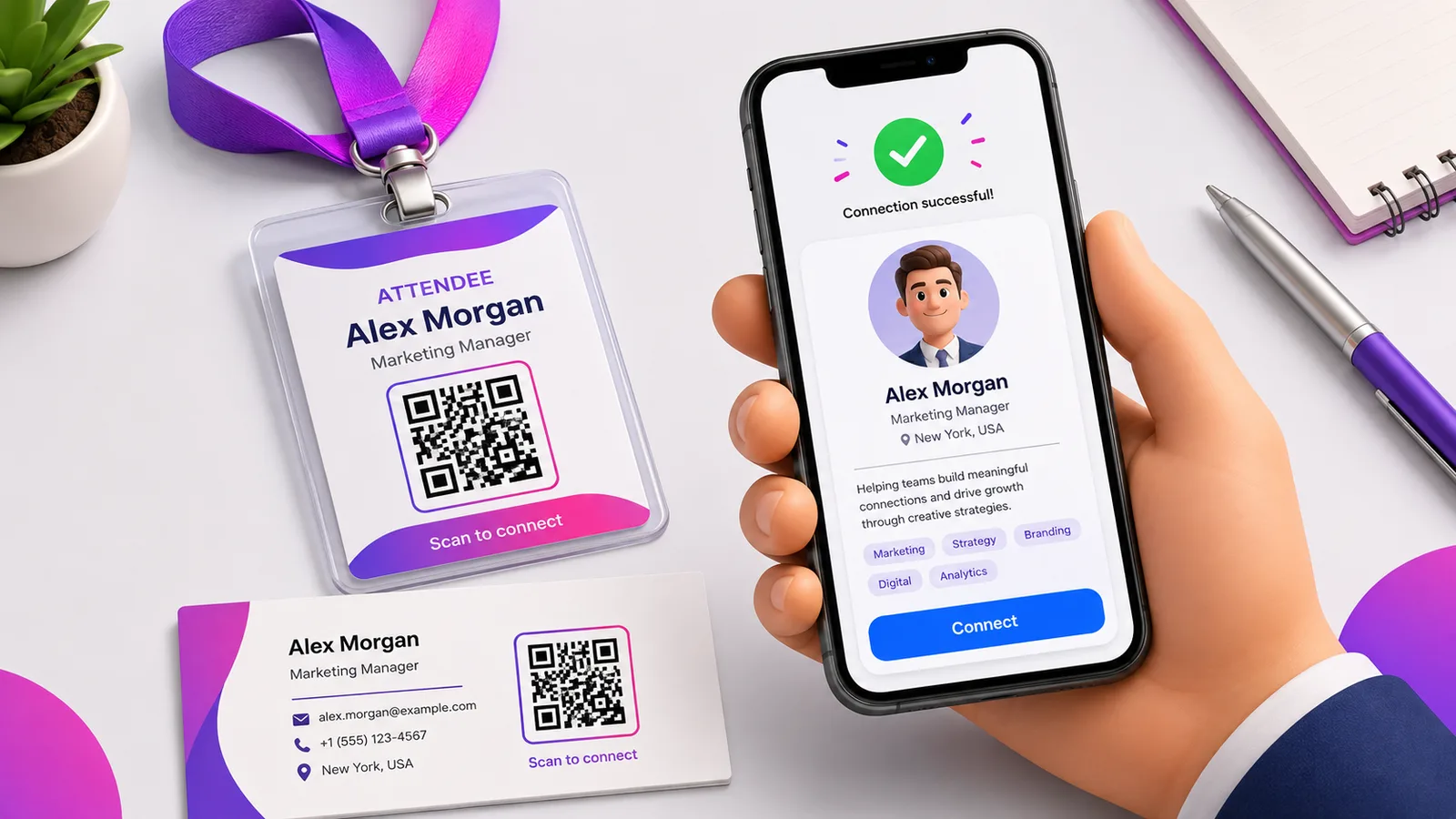
There are two ways to get a QR code for your LinkedIn profile: LinkedIn's own code inside the app, and a QR code you make yourself from your profile link. The built-in one is quickest; a code you own can be tracked, branded and pointed anywhere — which matters once it is on a business card or a conference badge. Here is how to make each.
Option 1: LinkedIn's built-in QR code
LinkedIn has a QR code inside the mobile app:
- Open the LinkedIn app and tap the search bar.
- Tap the QR code icon on the right of the search bar.
- Your code is under the "My code" tab; switch to "Scan" to read someone else's.
It is free and instant, and anyone who scans it lands on your profile. The catch: it only lives in the app, you cannot restyle it or add a logo, and you cannot see how many people scanned it or change where it points.
Option 2: A QR code you control
For anything printed — a card, a badge, a booth, a CV — a code you own is the better choice. Your public profile has a stable URL like linkedin.com/in/your-name (find it under your profile in "Contact info", or "Edit public profile & URL"). Turn that link into a QR code and you get one you can:
- Brand — colours and a logo, so it fits your card.
- Track — see how many people scanned it, and when.
- Change — point it somewhere else later (a new role, a portfolio, a booking link) without reprinting.
That last point is the real advantage of a dynamic code: the printed square never changes, but its destination can. Create one free, paste your LinkedIn URL, and download it for print.
Share your whole contact, not just LinkedIn
At a real event, people often want your number and email too, not only a follow. A vCard QR code saves your full contact card in one scan — name, phone, email and your LinkedIn URL together — so nothing gets retyped. It pairs well with a LinkedIn code: one to connect, one to save you.
Where to put it
- Business cards — the modern back of the card. See QR codes on business cards.
- Conference badges and lanyards — scan-to-connect beats typing a name into search.
- Email signature — a small code that opens your profile. More in QR codes in email signatures.
- Slides and booths — put it on the last slide of a talk or on the booth wall.
- Your CV — a recruiter scans straight to your profile.
Frequently asked questions
Does LinkedIn have its own QR code?
Yes — in the mobile app, tap the QR icon in the search bar. It opens your profile when scanned, but it lives only in the app and cannot be tracked or restyled.
How do I find my LinkedIn profile URL?
On your profile, open "Contact info", or go to "Edit public profile & URL" to see and customise it. It looks like linkedin.com/in/your-name.
Can I track how many people scan my LinkedIn QR code?
Not with LinkedIn's built-in code. Make your own from your profile URL as a dynamic code and you get scan counts — device, time and more.
Can I change where my LinkedIn QR code points later?
Only if it is a dynamic code. A static code bakes the link in permanently; a dynamic one keeps the same printed square but lets you redirect it — handy if you change your custom URL or want it to point at a portfolio.
Should I use a QR code or just my custom URL?
Both. The custom URL is easy to say out loud and type; the QR code is faster in person and on print, where no one wants to type anything.
Make a code for your profile in a minute — create a dynamic QR code free, or build a full contact card QR to hand out at your next event.